
User guide
How to use the Capital Outrigger team app: the schedule, RSVPs, chats, lineups, and the tools for coaches and admins. The screenshots use made-up members and events. Current version: 1.16 ( what's new ).
Labels show who can use each feature: Everyone Coaches and admins Admins
Getting started
EveryonePut the app on your home screen
The team app is a web app: there is nothing to download from an app store.
- iPhone: open the app's link in your browser (Safari, Chrome, or another), tap the Share button, then Add to Home Screen and Add. Open it from the new icon. iPhone only allows notifications from the home-screen app.
- Android: open the link in Chrome, tap the menu (⋮), then Add to Home screen or Install app.
Sign in with a code
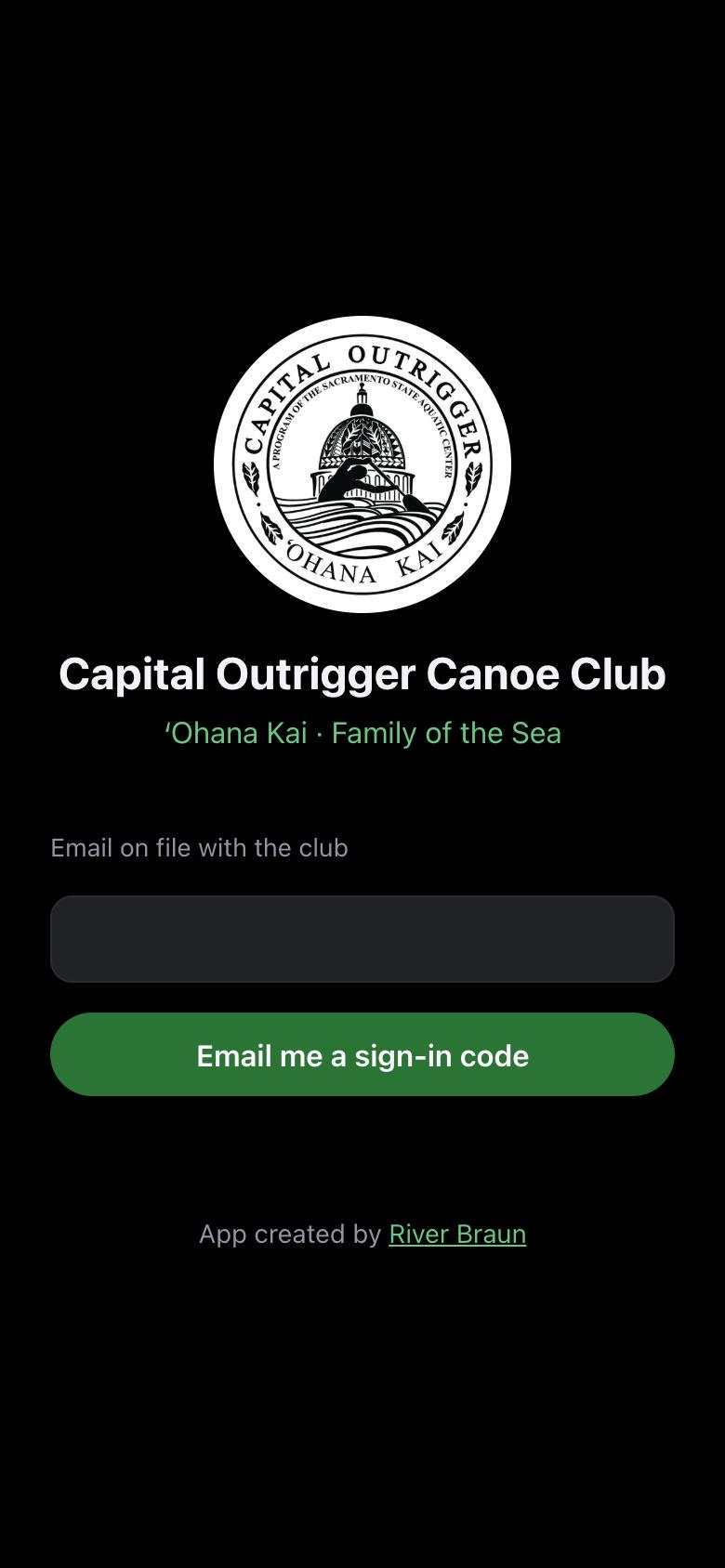
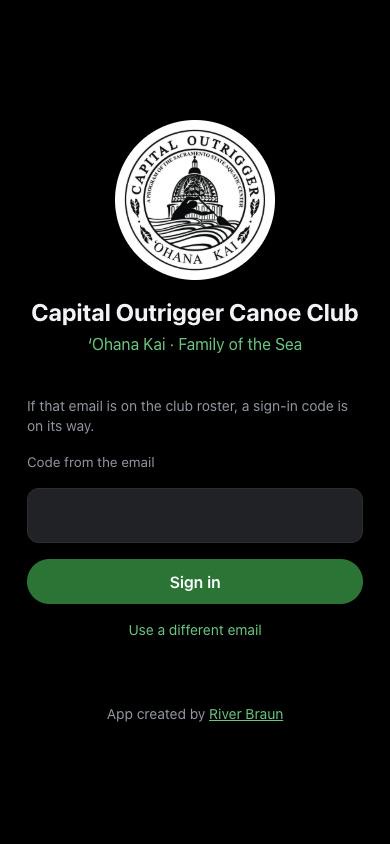
- Type the email the club has on file and tap Email me a sign-in code.
- Open the email from Capital Outrigger and copy the code. Your phone may offer to fill it in for you. It's fine to leave the app to check your email: when you come back, it's still waiting for the code. If it isn't, tap I already have a code.
- Enter the code and tap Sign in. You stay signed in until you tap Sign out.
Only people on the club roster get a code. If nothing arrives, check spam, then ask an admin to check your email on the roster. If you asked for a code more than once, use the newest email. An invite email never expires: it just tells you to follow these same steps.
If your dues have lapsed, you'll see a Welcome back page with the club's payment links instead of the app. Once an admin turns your membership back on, everything returns.
Turn on notifications
The first time you open the app, a banner asks to send notifications. Tap Turn on and allow them, so you hear about new events, cancellations, lineups, and messages. If you dismissed it by mistake: on iPhone, remove the app from your home screen and add it again; on Android, clear the site's data in Chrome. The banner comes back.
Getting around
The bar at the bottom has five tabs: Home, Schedule, Roster, Messages, and More. A red number on Messages (and on the app's icon) counts unread chat messages.
The app updates itself after each release. You never need to reinstall it.
Home
Everyone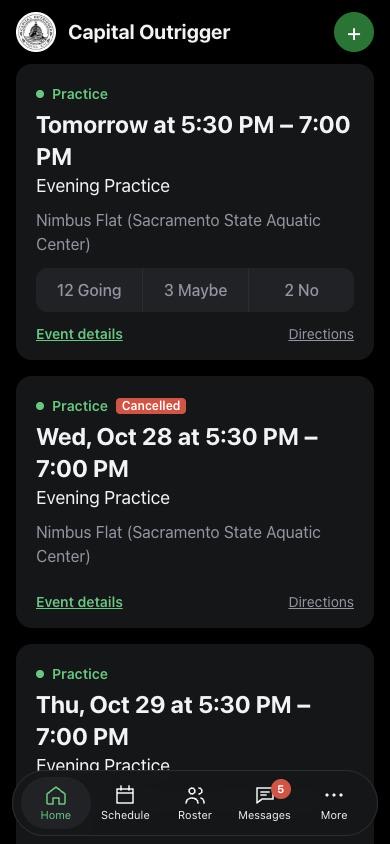
Home shows the next six events. Each card has the date and time, the event, the place, and three buttons with counts: Going, Maybe, and No.
- Tap an answer to RSVP. Tap your answer again to take it back.
- Event details opens the event. Directions opens the location in Maps.
- Cancelled events show a red Cancelled label.
- Coaches and admins see a + button to add an event.
Schedule
Everyone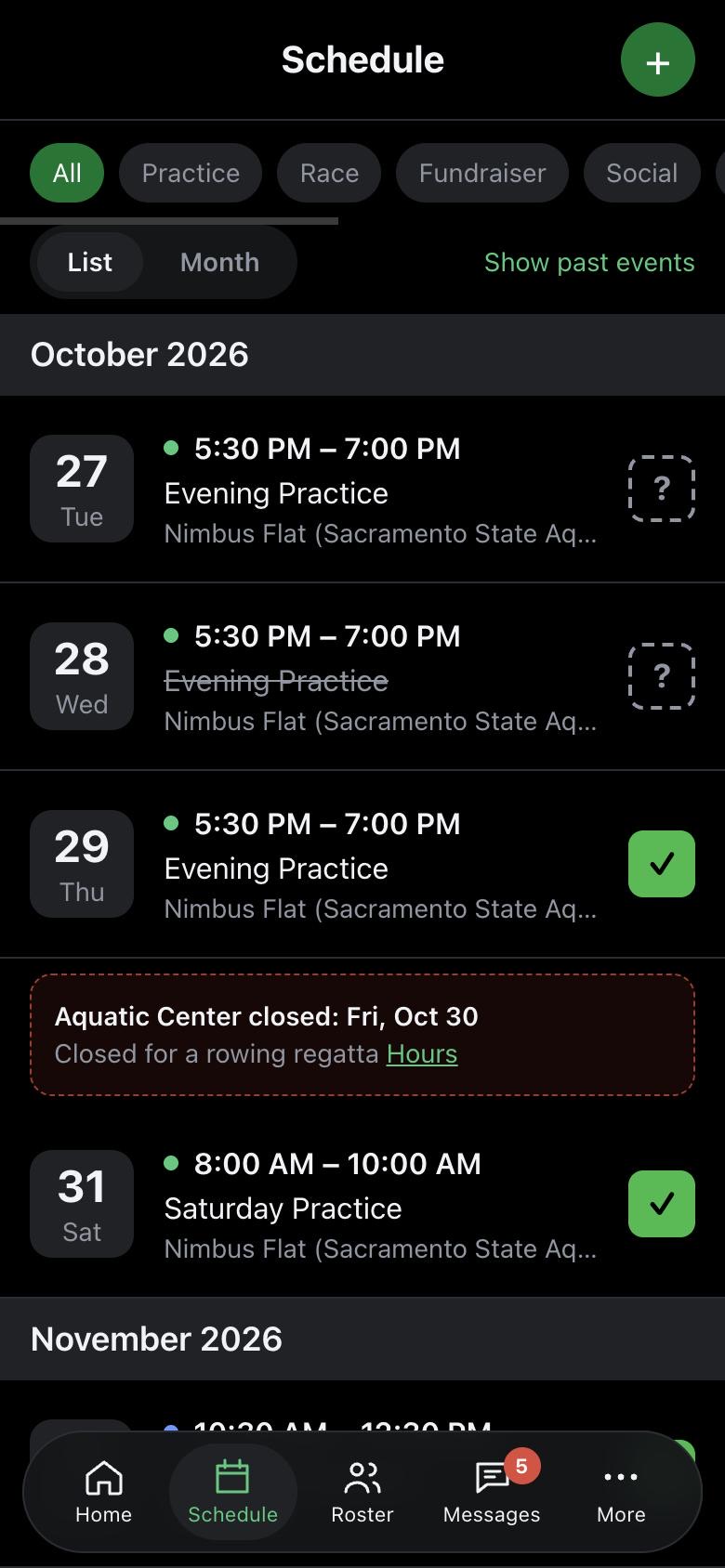
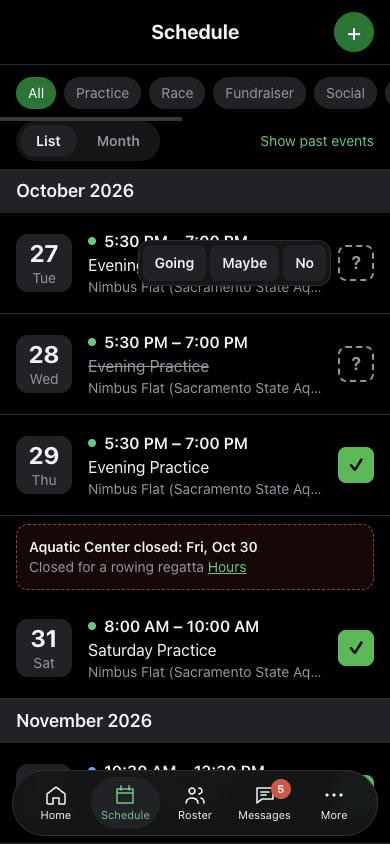
List view
- Events are grouped by month. Use the chips at the top to show one type: Practice, Race, Fundraiser, Social, Canoe cleaning, Loading / unloading, Meeting, or Class.
- The box on the right is your answer: a dashed ? means you haven't answered, green ✓ is Going, yellow ? is Maybe, red ✕ is No. Tap it to answer right there.
- Show past events lists earlier events, newest first.
- Days the Aquatic Center is closed (red) or paddle craft only (yellow) appear in the list, with a link to the center's hours.
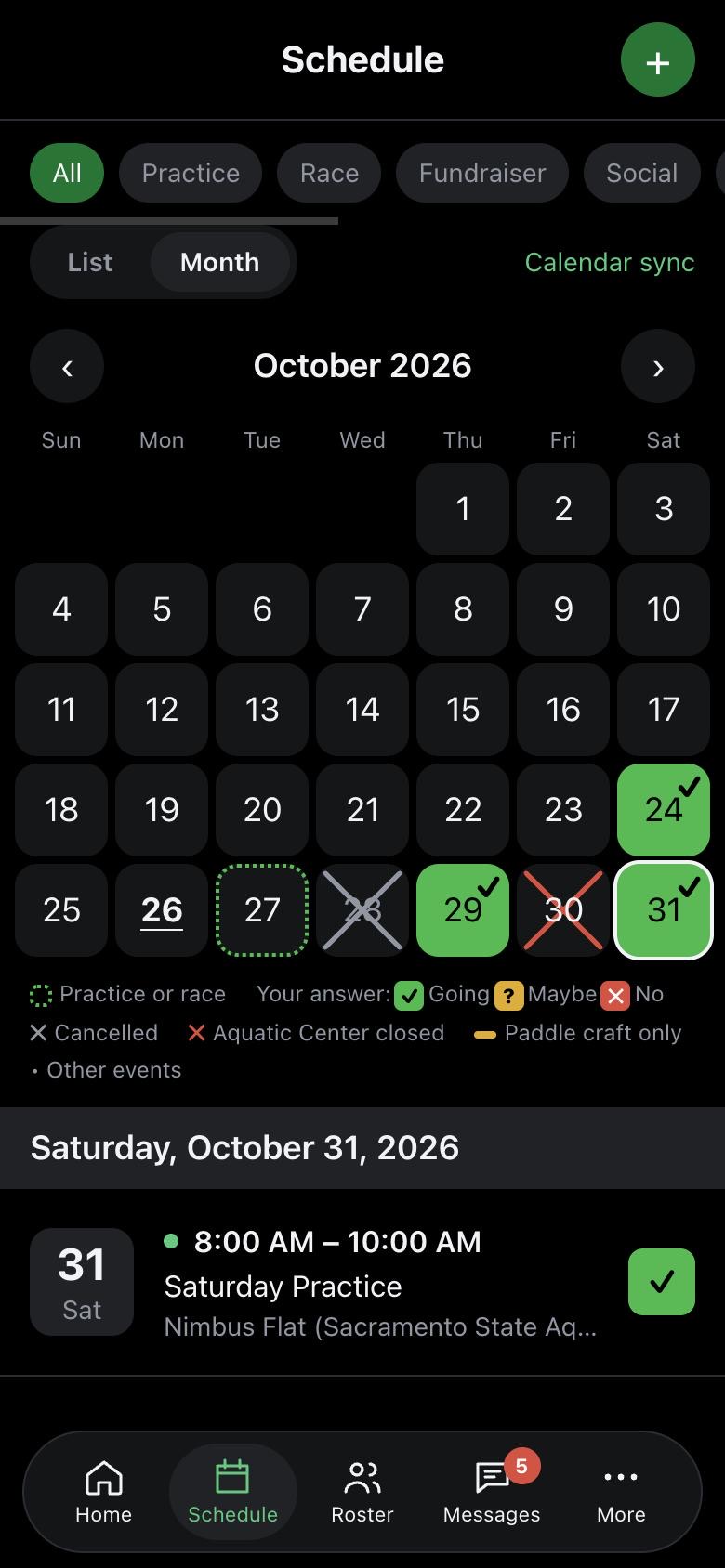
Month view
- Practice and race days have a green dotted outline. Once you answer, the day fills in: green ✓ Going, yellow ? Maybe, red ✕ No.
- A gray X means that day's paddling was cancelled. A gray day with the date in red means the Aquatic Center is closed. A yellow bar means paddle craft only. Small dots are other events.
- Tap a day to see its events below the calendar. Swipe the calendar left or right (or use ‹ and ›) to change months.
- Calendar sync (top right) puts club events in your phone's calendar. See More.
Events
EveryoneTap any event to open it. An event has four tabs: Details, Availability, Chat, and Jobs.
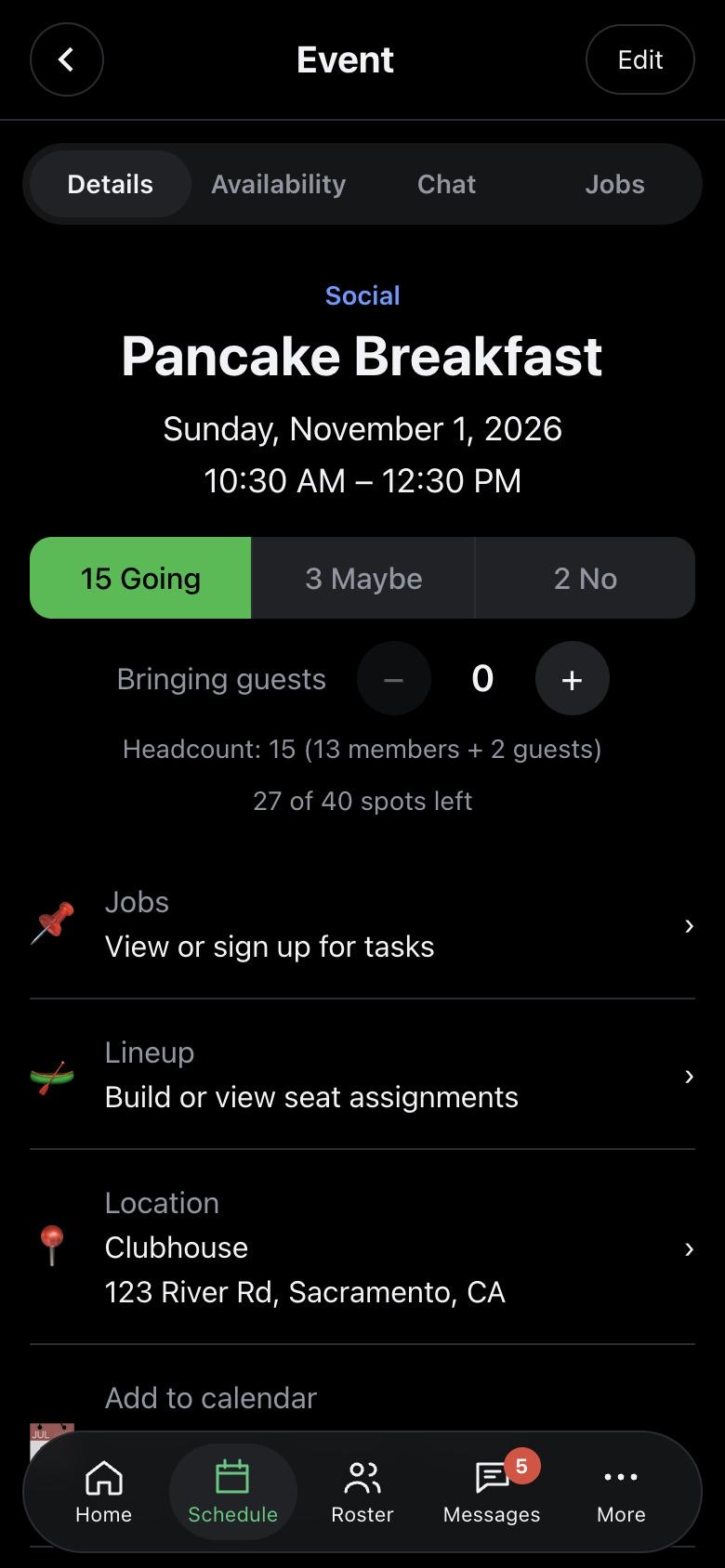
Details
- RSVP with Going, Maybe, or No. Tap your answer again to take it back.
- Social events: when you're Going or Maybe, use Bringing guests (− and +) to add up to 10 plus-ones. The headcount includes guests.
- Spots: if an event has a limit, you'll see how many are left. People who say Going after it fills are on a waitlist, in the order they signed up. Guests don't take spots.
- Lineup shows your seat once the coach publishes it.
- Location opens Maps. Add to calendar adds this one event to your calendar (iPhone, Mac, Outlook, or Google).
- If the Aquatic Center lists the day as closed, a banner tells you to check its hours.
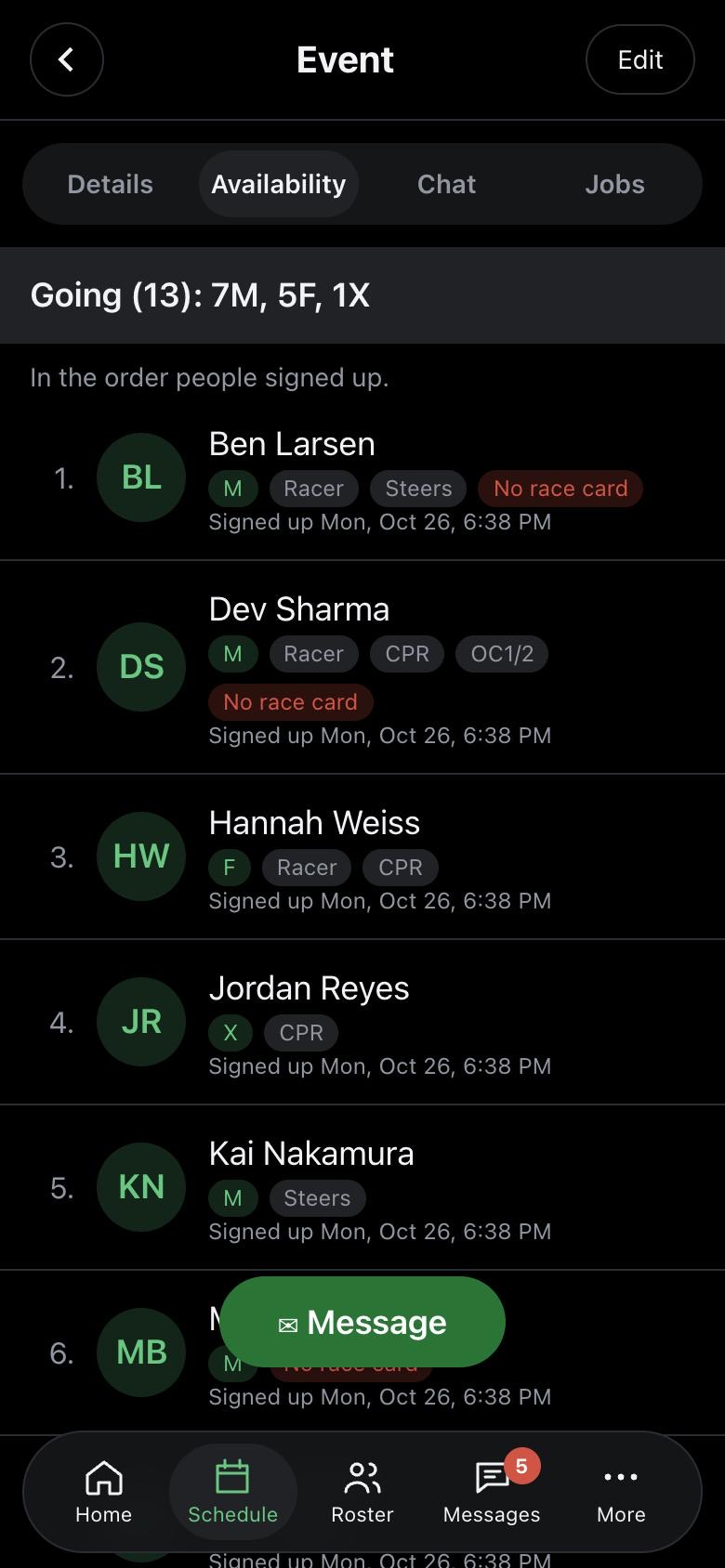
Availability
- Who's Going (in sign-up order), on the Waitlist, Maybe, Not going, and hasn't answered, with counts like "7M, 5F, 1X" for mixed crews.
- Tags next to names: Racer, CPR, Novice, Stroke, Steers, OC1/2, New.
- ✉ Message sends a note to a group, like everyone Going ("Running 10 minutes late"). It also posts in the event's chat. You can use it once you've answered.
Extra on AvailabilityCoaches and admins
- Gender and racing age (age on December 31, per NCOCA rules) next to each name.
- On races, a red No race card tag for anyone without a race card on file.
- After the event starts, a Here box next to each person, to mark attendance. It's optional: anyone who said Going counts as attending unless you untick them.
Chat
Each event has its own chat. Answer the event (Going, Maybe, or No) to read and post in it; coaches and admins can always see it. It works like any other chat (see Messages).
Jobs
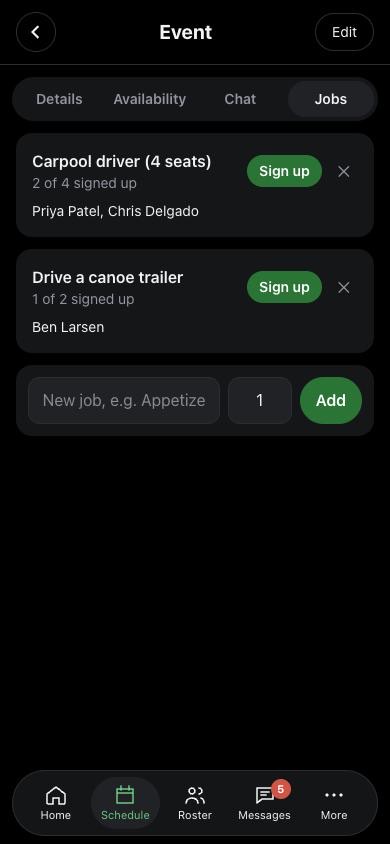
Volunteer jobs like "Drive a canoe trailer" or "Flip pancakes". Tap Sign up, or Leave to drop out. A full job says Full. Coaches and admins add jobs at the bottom and remove them with ✕.
Adding and changing events
Coaches and admins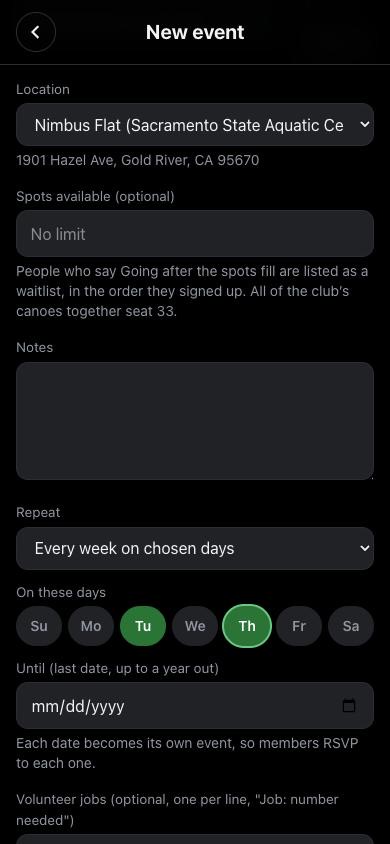
Add an event
- Tap + on Home or Schedule.
- Pick the Type, enter a Title, and set when it Starts. Ends at lists times after the start, with the length.
- Pick a saved Location, or Add a new location (tick "Save this location" to reuse it).
- Optional: Spots available (for a limit and waitlist), Notes, and Volunteer jobs, one per line, like "Load trailer: 6".
- Repeat: every week on the days you pick, every month, or every 3 months, until a date up to a year away. Each date becomes its own event.
- Leave Notify the club ticked to let everyone know, then tap Add to schedule.
Add many events from a spreadsheet
- Tap +, then Upload a spreadsheet at the top.
- Fill in a sheet (there's a sample to download) with Date, Start, and Type, plus End, Title, Location, Address, Notes, or Capacity if you like. Save it as CSV (Excel: File > Save As > CSV; Google Sheets: File > Download > CSV).
- Choose the file. The app shows every event it read and any rows with problems, before anything is saved.
- Tap Add. One notice tells members about all of them (untick it to skip).
Aquatic Center closures: if you schedule at Nimbus Flat or the Aquatic Center on a day the center lists as closed, the app stops and shows the closed dates with a link to the hours page. If you know it's fine, tick Schedule anyway and save again. Spreadsheet uploads flag those rows the same way.
Change, duplicate, cancel, or delete
- Edit (top right of an event) changes it. Tick "Notify people going or maybe" if they should hear about it. Each date in a repeating series is edited on its own.
- Duplicate opens a copy one week later.
- Cancel event (tap twice to confirm) tells everyone who said Going or Maybe, by phone notification and email. Restore event undoes it the same way.
- Delete event is for admins only. It removes the event, its RSVPs, jobs, chat, and lineups for good, and tells no one. Cancel is usually better.
- History at the bottom of Details shows who added, edited, cancelled, or restored the event.
Lineups
Everyone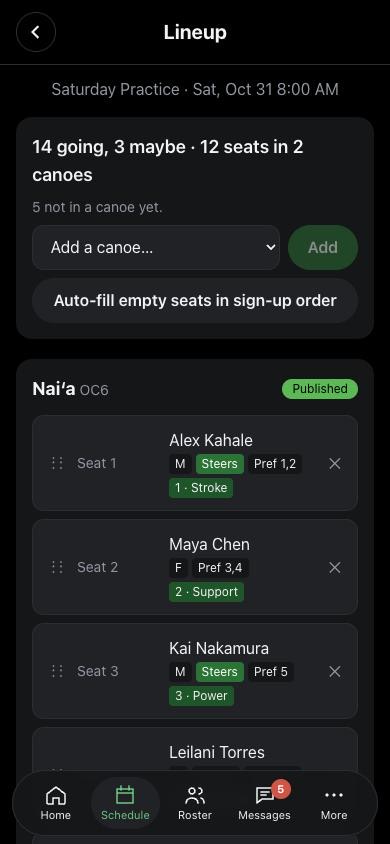
Open an event and tap Lineup. Paddlers see only canoes the coach has published, with their own seat highlighted: "You're in Naiʻa, seat 3."
Build a lineupCoaches and admins
- Choose a canoe in Add a canoe and tap Add. A canoe with an open high-urgency repair report is marked "needs repair".
- Fill seats: drag a paddler by the ⋮⋮ grip onto a seat (works on phones too), or tap a seat and then a name. Drag onto the list to unseat someone. A paddler can be in only one canoe per event.
- Or tap Auto-fill empty seats in sign-up order: Going first, then Maybe, with a steersperson in the last seat and strokers up front. Review it before saving.
- Tap Save, then Publish to crew. The paddlers in that canoe get a phone notification with their seat.
Each paddler shows gender and racing age, tags, seat preferences ("Pref 1,2"), and their role. Set a role (1 Stroke, 2 Support, 3 Power, 4 Power steer / Newbie, 5 Steers, 6 Anchor) from the list; What do the role numbers mean? explains them. The steersperson is always the last seat.
Messages and chats
Everyone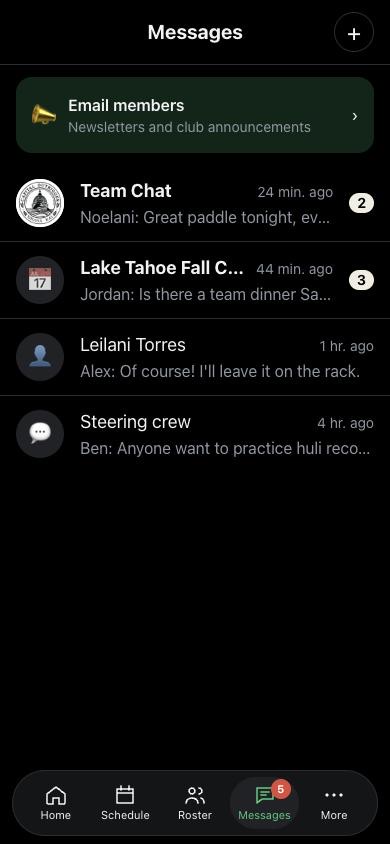
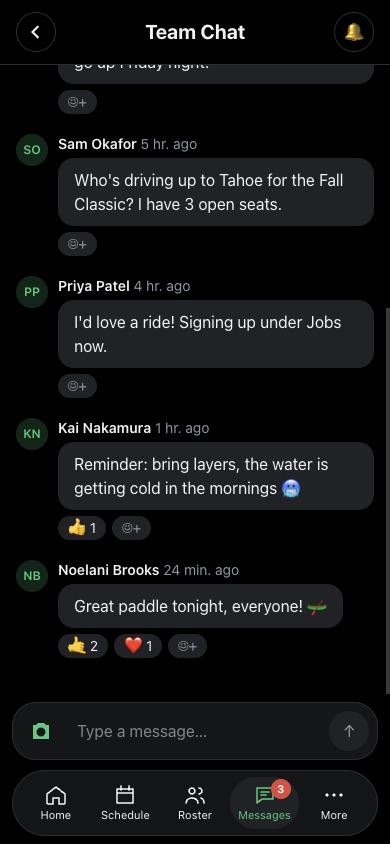
- Team Chat (with the club seal) is the chat with every member. It always stays at the top and can't be archived.
- Event chats are named with the event and date. They show up here once someone posts.
- Direct and group chats: tap +, pick one or more people, add an optional group name, and tap Start chat. You can also tap Message on anyone's roster profile.
In a chat
- Type and tap ↑ to send. Tap the camera to add a photo.
- Chats open at the newest message. Scroll up and tap Load earlier messages for older ones.
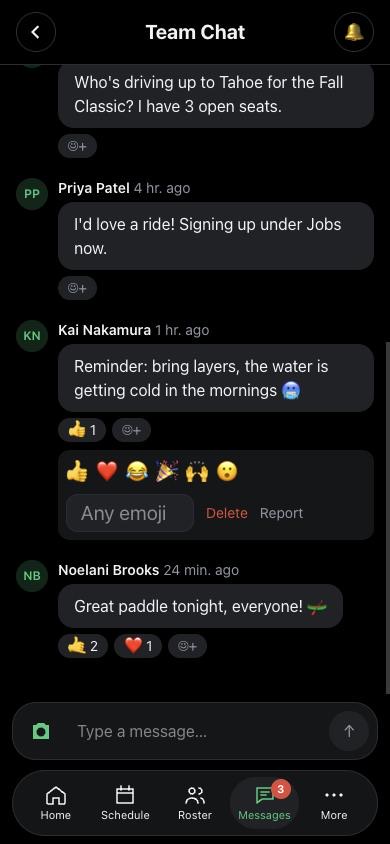
- React: tap ☺+ under a message for 👍 ❤️ 😂 🎉 🙌 😮, or tap + and pick any emoji from your phone's emoji keyboard. Tap a reaction to add or remove yours. Press and hold a reaction (or tap ☺+, then Who reacted) to see who left it.
- The same menu has Edit and Delete for your own messages, and Report for someone else's. Reports go to the admins.
- The bell (top right) mutes a chat or archives it. An archived chat comes back when someone posts. Group chats also have Leave group.
- On the Messages list, swipe a chat left and tap Archive (or swipe all the way). In Archived chats, swipe left for Unarchive.
- In a group chat, the person who started it (or an admin) can add or remove people.
Email members
Coaches and admins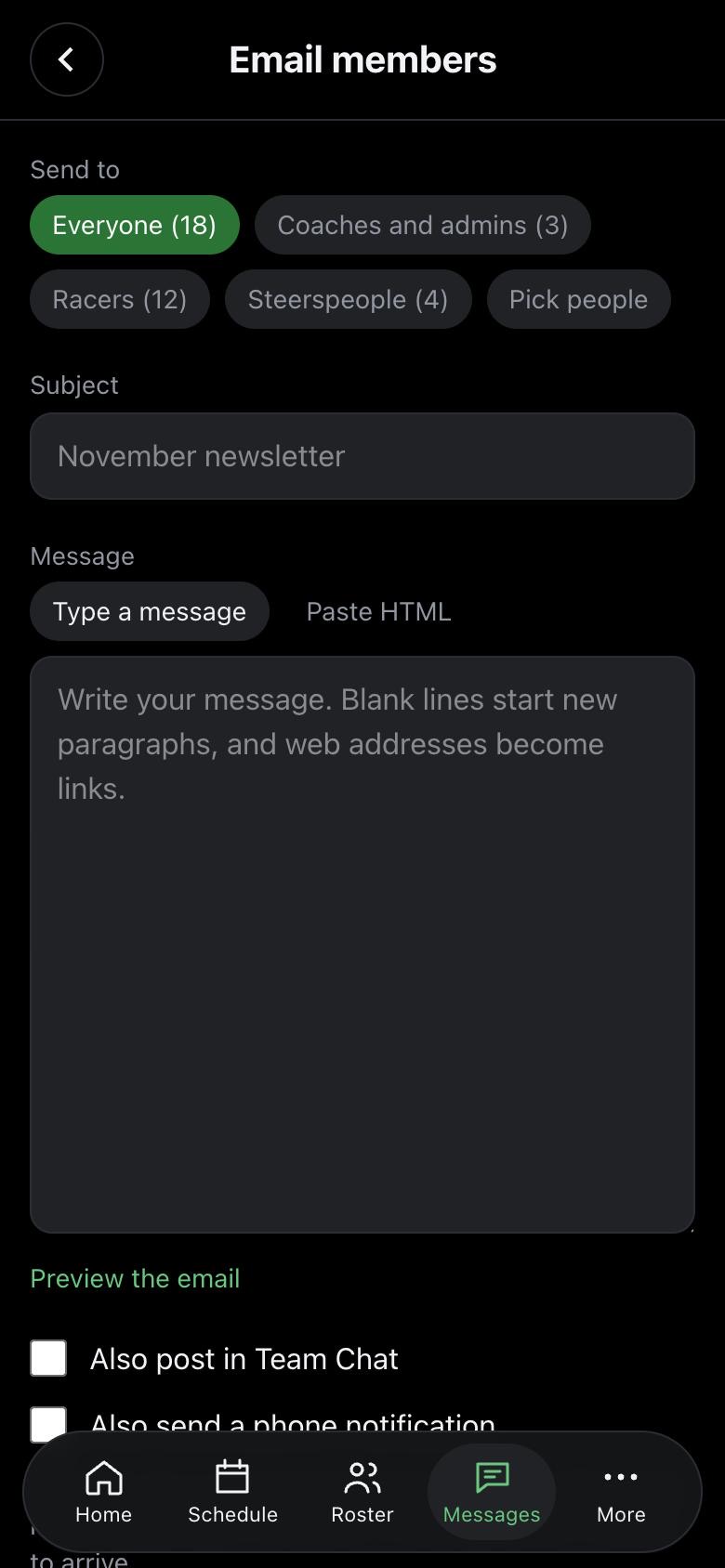
For newsletters and announcements. Open Messages and tap Email members.
- Choose who gets it: Everyone, Coaches and admins, Racers, Steerspeople, or Pick people.
- Write a subject and message (blank lines start new paragraphs; web addresses become links), or Paste HTML from a newsletter tool.
- Tap Preview the email, and Send a test to me if you like.
- Optional: Also post in Team Chat and Also send a phone notification.
- Tap Send to N people twice to confirm. It can take a few minutes to arrive.
Club emails go out as one bulk email with an unsubscribe link, so they don't use up the app's daily email allowance. Recently sent lists past emails.
Roster
Everyone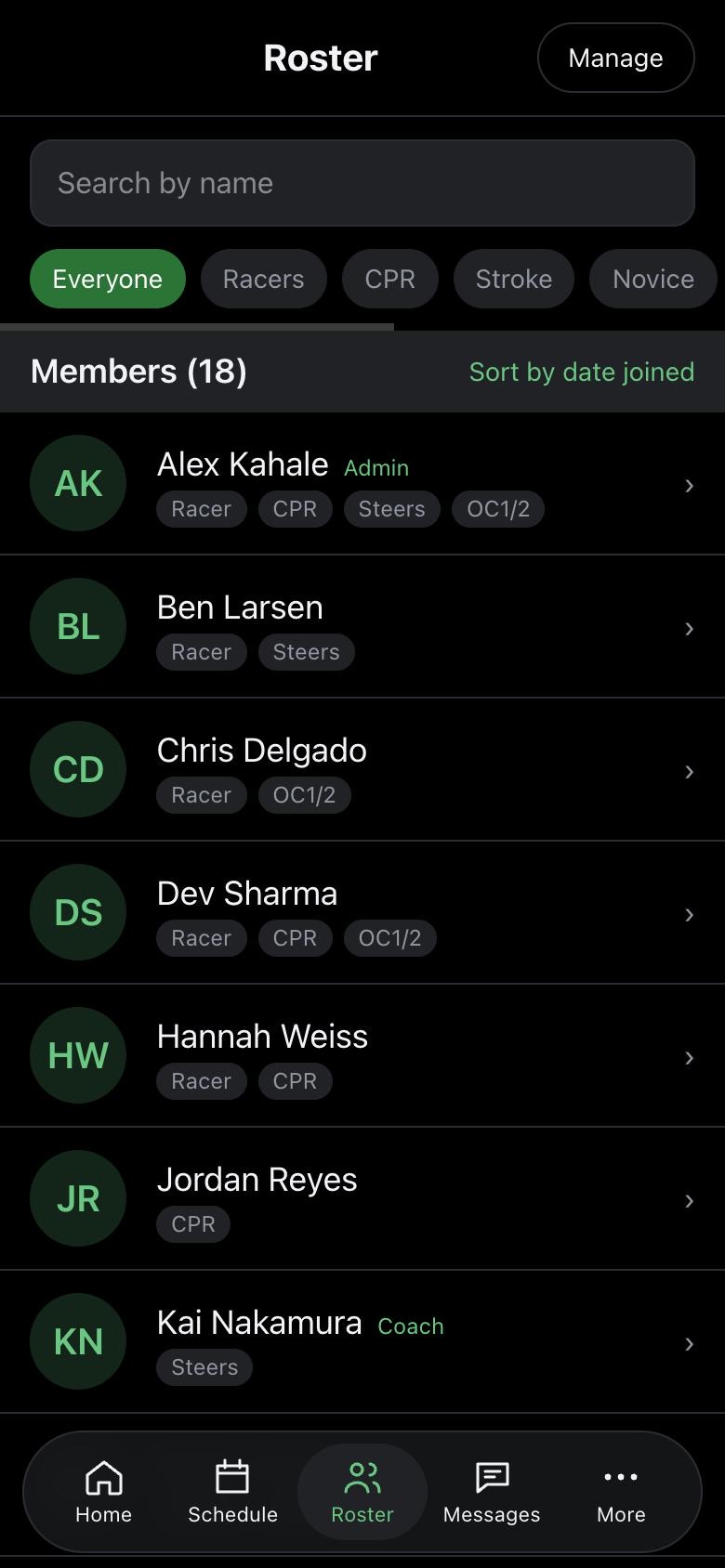
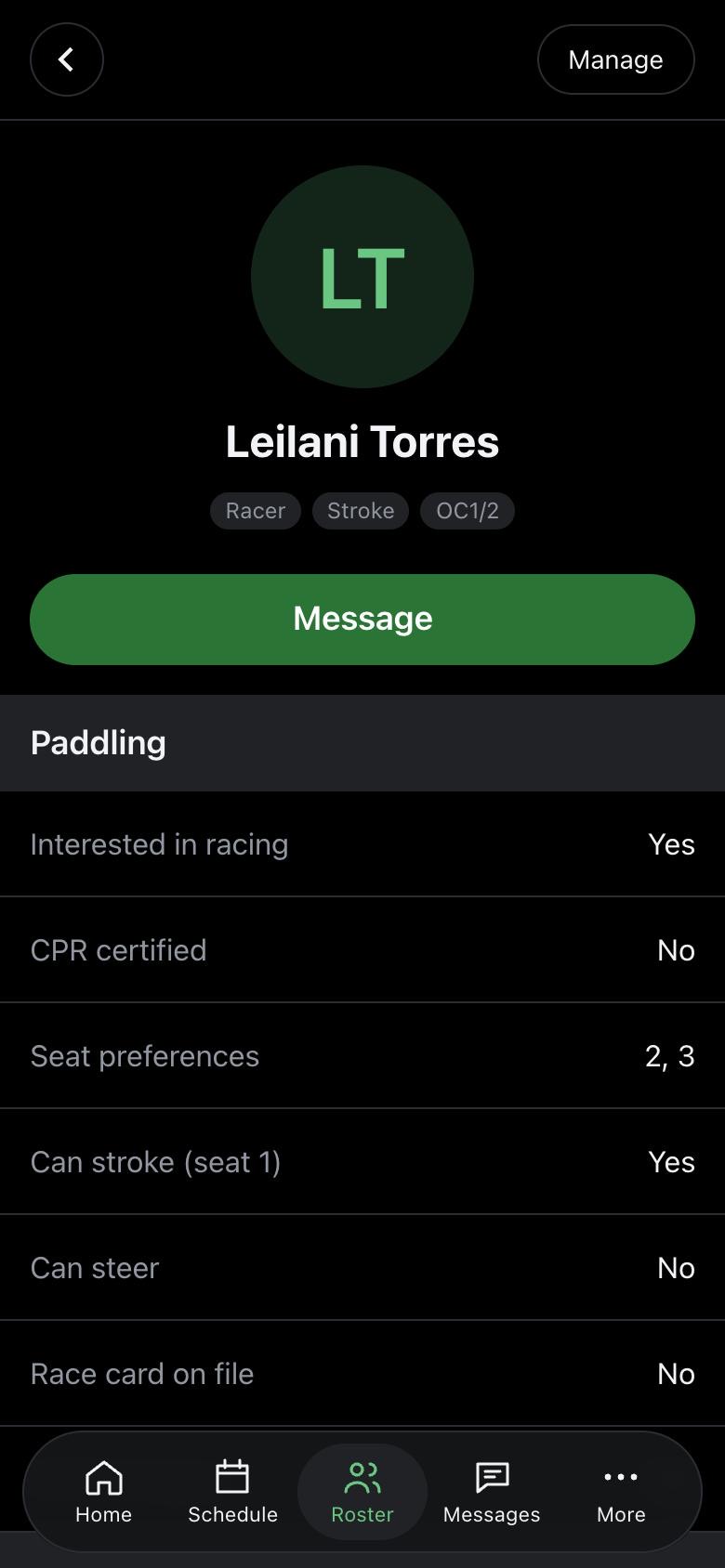
- Search by name, or filter: Racers, CPR, Stroke, Novice, Steers, OC1/2 cleared, New paddlers. Sort by name or date joined.
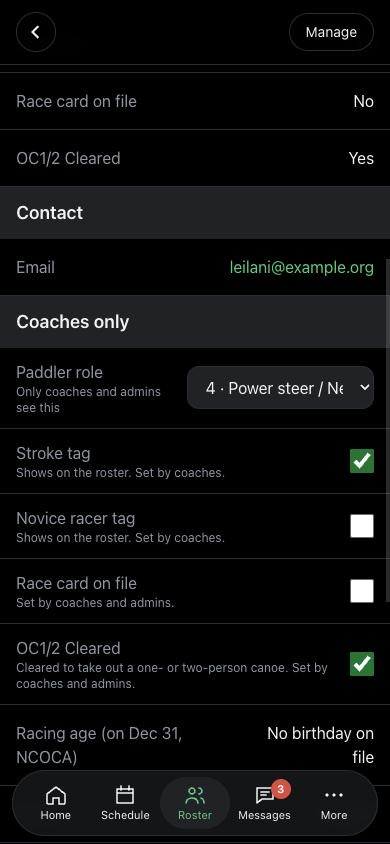
- Tap someone to see their paddling details, seat preferences, and contact info, or to Message them.
- OC1/2 marks paddlers cleared to take out a one- or two-person canoe, so you can find an OC2 partner.
- Board members have a green tag with their position: President, Vice-President, Secretary, Treasurer, Race Rep, AM Rep, or PM Rep.
Coaches onlyCoaches and admins
On a profile, coaches and admins set the Paddler role (1 to 6) and tick Stroke tag, Novice racer tag, Race card on file, and OC1/2 Cleared. Changes save right away. They also see racing age, gender, time trials, and the emergency contact and medical notes.
If someone hasn't signed in to the app yet, their profile says so, with an Invite to the app button (or Send the invite again). One tap emails them the invite.
My profile
Everyone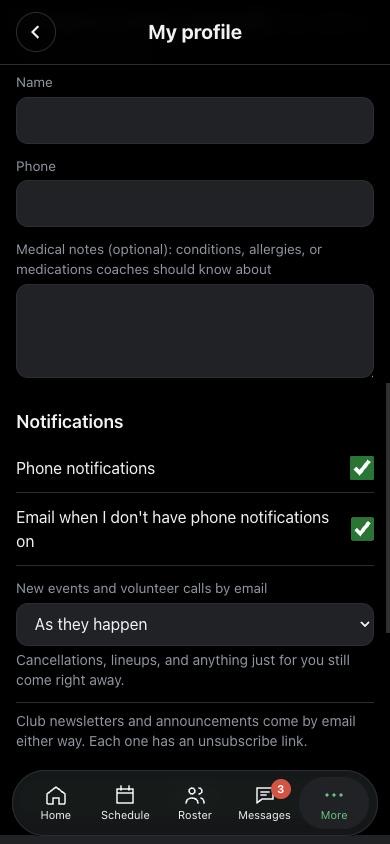
Open More and tap your name at the top.
- About you: photo, name, phone, gender (optional, for mixed-crew counts), and birthday (optional, for age divisions; only coaches see it).
- Paddling: Race card on file and OC1/2 Cleared (set by coaches), Interested in racing, I can steer, I'm a new paddler, a Strava or tracker link, the OC6 seats you like, and CPR certification with its expiry date.
- Emergency contact and health: only you, coaches, and admins can see it.
- Notifications: see the next section.
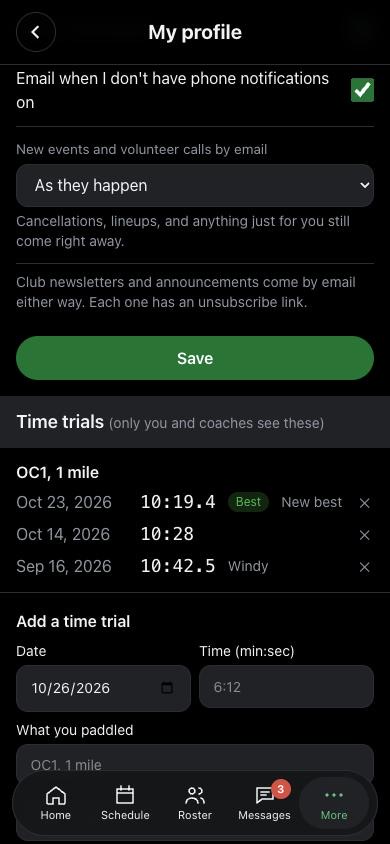
- Tap Save. Sign out is at the bottom.
Time trials
Track your timed pieces. Enter the date, your time (like 6:12 or 6:12.4), and what you paddled (like "OC1, 1 mile"), then tap Add time trial. Your fastest time on each course is marked Best. Only you and coaches see them. To fix one, remove it with ✕ and add it again.
Notifications and email
EveryoneOn My profile, under Notifications:
- Phone notifications: the club sends notices to your phone (you also need to allow notifications on the phone).
- Email when I don't have phone notifications on: if your phone isn't getting notifications, notices come by email instead.
- New events and volunteer calls by email: get them as they happen, in one summary each morning, or in one summary each Sunday evening. Cancellations, lineups, and anything just for you still come right away.
What you get, and how:
| What | Who | How |
|---|---|---|
| New event | Everyone | Phone; email or summary if no phone notifications |
| Event changed | Going and Maybe | Phone; email if no phone notifications |
| Event cancelled or back on | Going and Maybe | Phone and email |
| Lineup published | Paddlers in that canoe | Phone |
| Team Chat and event chats | Members of the chat | Phone only (never email) |
| Direct and group chats | Members of the chat | Phone; email if no phone notifications |
| Club newsletters and announcements | Who the sender picks | Email (unsubscribe link in each one) |
Muted chats don't notify you. Everything except chat messages is also saved on More > Notices.
Canoe checkout
EveryoneBorrow the club OC1 or OC2 under More > Canoe checkout, with the same sign-in as the rest of the app.
- First, a coach checks you out on the canoes and ticks OC1/2 Cleared on your profile (the app keeps the date and the coach). Until then you can see when the canoes are free, but not book one.
- Right now shows each canoe: available, reserved, out (with who has it and when it's due back), blocked for club use, or not to be used (out of service, or an urgent repair report).
- Take one now: pick the canoe and how long, then tap Book it now. The checkout form opens at the top of the page.
- Reserve: pick the canoe, the day, the start time, and how long, then tap Reserve. The calendar shows the next 2 weeks; days the Aquatic Center is closed are gray and can't be picked. You get an email copy with a calendar file to add it to your calendar (or tap Add to calendar on the reservation), and a reminder the evening before (or 3 hours before an afternoon outing).
- Checking out: at your start time (not earlier), your reservation shows the lake conditions (weather, wind, air quality, weather alerts) and the checklist. Tick every item, check your phone number and emergency contact, and tap Check out. A reservation not checked out within 30 minutes of its start is released for others. You get an email copy with your due-back time.
- In the OC2, you can add a club member as your partner. They can check the canoe out and in too.
- Cancel a reservation you can't make (tap twice to confirm) so someone else can go. You and your partner get an email saying it was cancelled (and by whom, if a coach or admin did it), with a calendar file that marks it cancelled in your calendar.
- I'm running late: while out, add 15 to 60 minutes (up to closing or the next booking). At your return time you get a reminder; if you still haven't checked in after a short grace period, your emergency contact, you, and the club's alert people are emailed.
- Check in when you're back. Add a note and photos if you like. Tick Something needs a repair and choose how urgent to also send a repair report. You get an email copy when you check in.
- Next 2 weeks lists each day with the Aquatic Center's hours and every booking. On someone else's reservation, tap Tell me if it frees up to hear if it's cancelled or released.
The rules: up to 2.5 hours per outing, one canoe per person at a time (partners count), only during the Aquatic Center's hours (for booking and for checking out) and never on a closed day, and not while the canoe is out of service or has an open high-urgency repair report. The hours come from the center's website with the closed days.
Your emergency contact (with an email, so they can be alerted) is on My profile, and the checkout form can save it there for next time.
Coaches and adminsCoaches and admins
- Book for any cleared paddler (pick them under Paddler), or block a canoe for Club use (any length, and it can repeat weekly for up to 12 weeks).
- Cancel anyone's booking that hasn't gone out. For an overdue canoe, Right now shows the paddler's phone and emergency contact.
- See the last 30 days of outings with their check-in notes.
Admin > OC1/OC2Admins
- Canoes: rename, retire, or add an OC1 or OC2.
- Rules: the longest outing, how late counts as overdue, how far ahead people can reserve, and the checkout checklist.
- Out of service: take the OC1 or OC2 off the booking list, with a note members see.
- Who gets canoe alerts: tick Overdue or Repairs for coaches and admins.
- Calendar for the club website: a public page of when the canoes are free (times only, no names), and the code to paste into Squarespace.
- Usage: outings, hours per canoe, paddlers, late returns, reservations not picked up, and cancellations by month. Download history gives every booking as a spreadsheet.
More
Everyone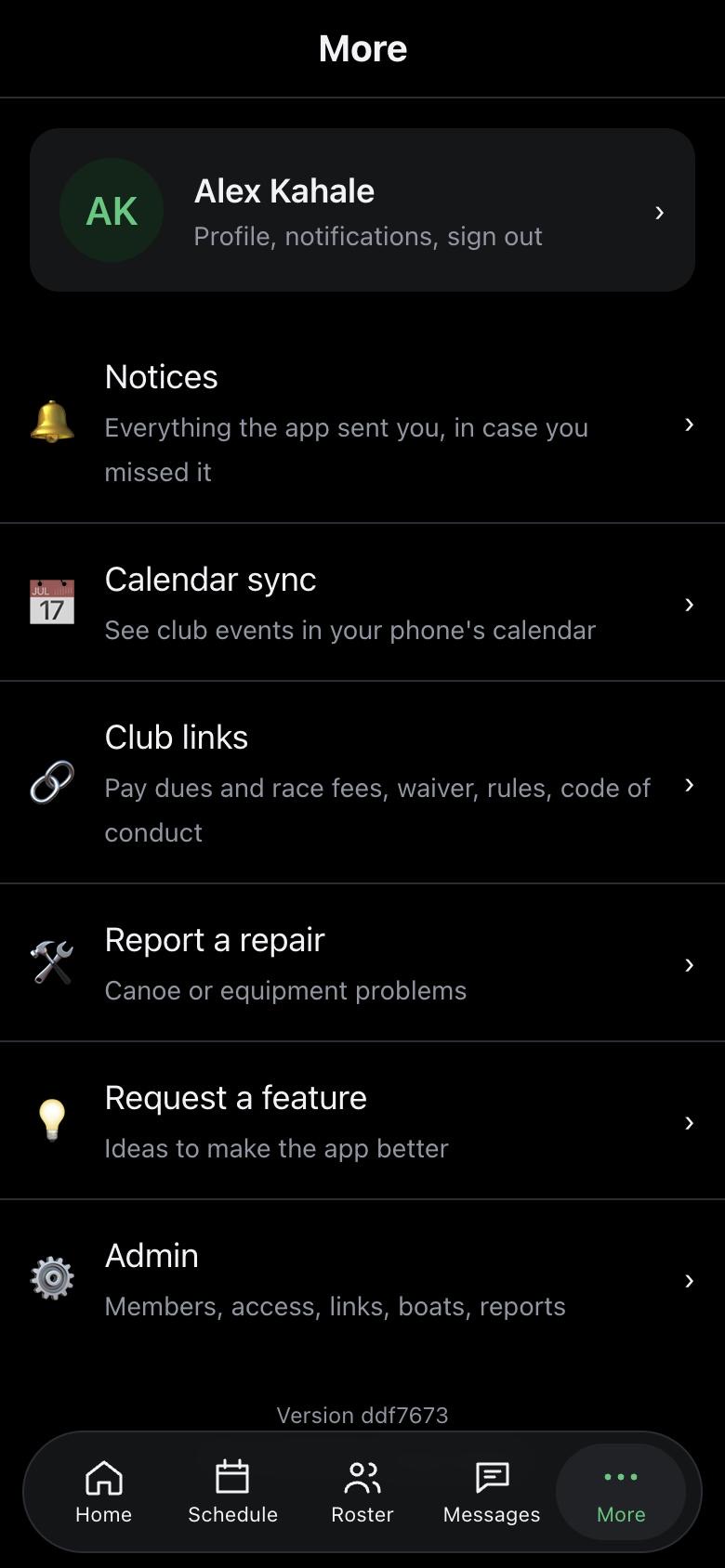
- Canoe checkout: reserve or take the OC1 or OC2 (see Canoe checkout).
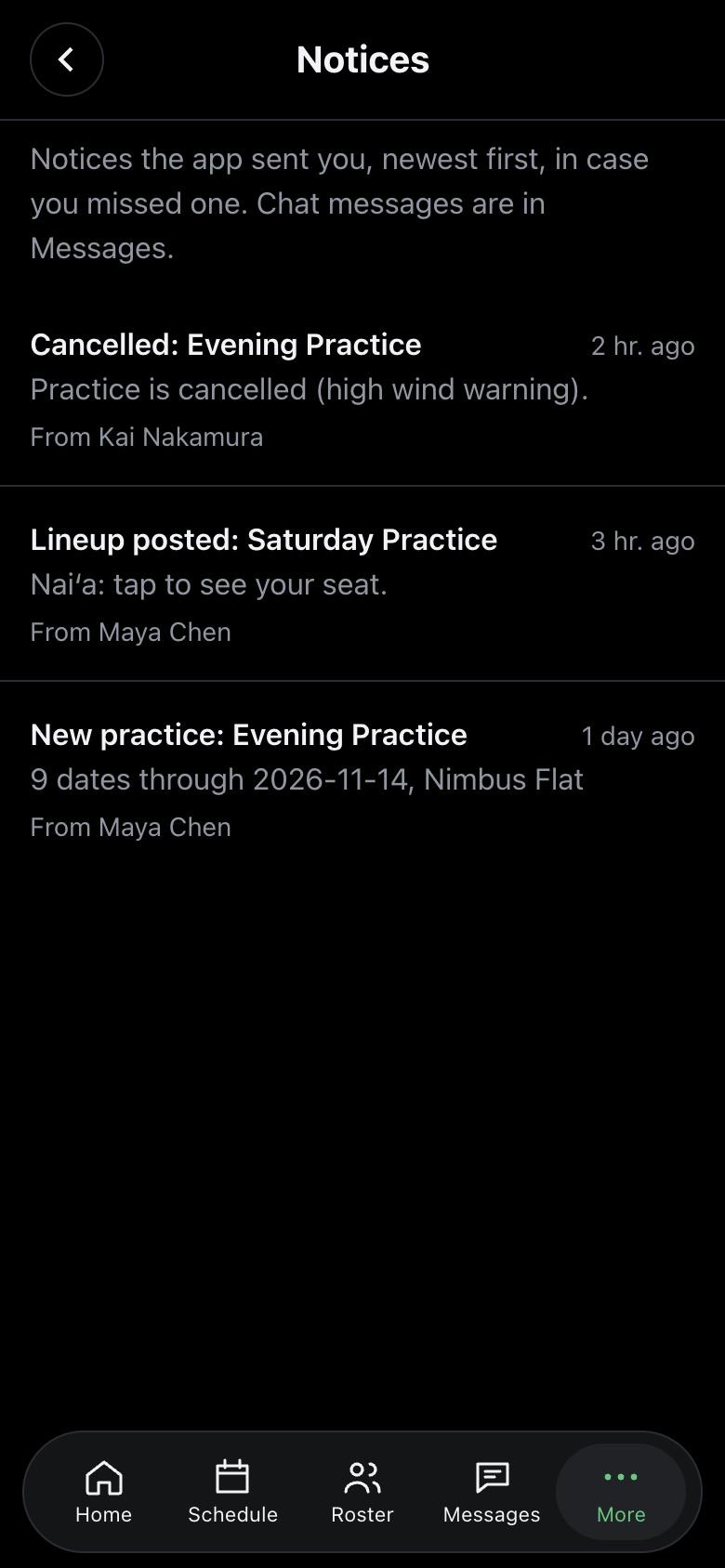
- Notices: everything the app sent you, newest first, in case you missed a notification. Tap one to open it.
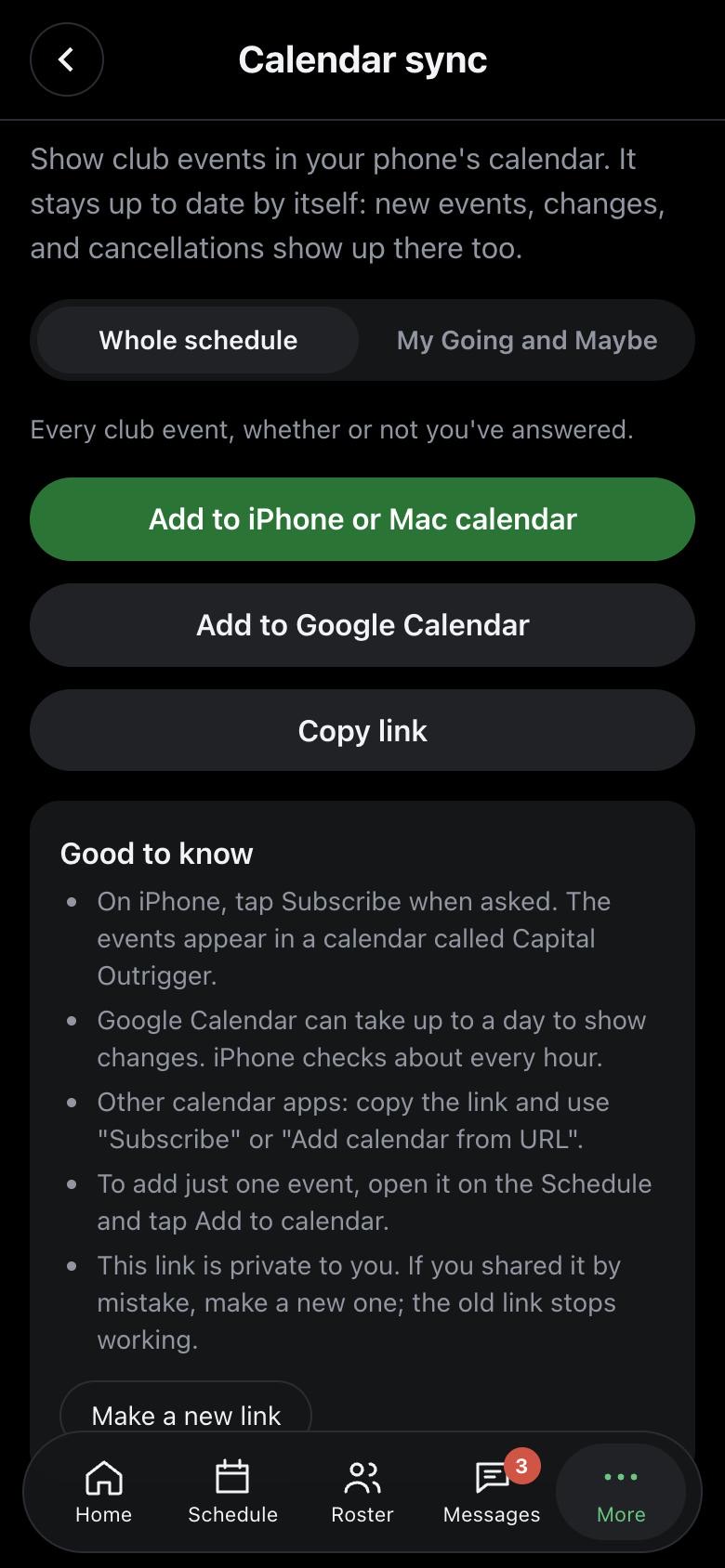
- Calendar sync: choose Whole schedule or My Going and Maybe, then tap Add to iPhone or Mac calendar or Add to Google Calendar. Your calendar keeps itself up to date (iPhone about every hour, Google within a day). The link is private; if you shared it by mistake, tap Make a new link.
- Club links: pay dues and race fees, sign the waiver, the rule book, new paddler resources, and photo and video folders. Check out an OC1/OC2 at the top opens Canoe checkout.
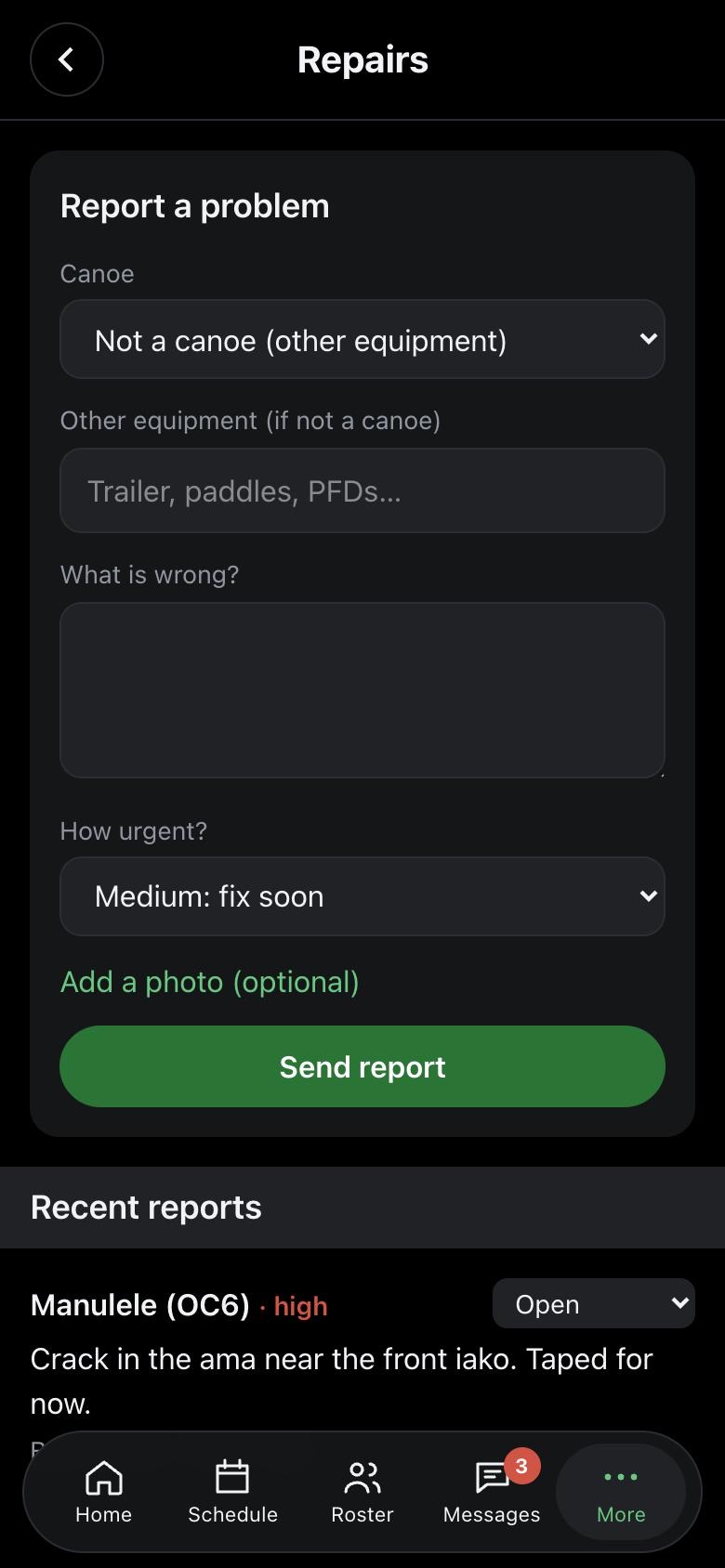
- Report a repair: pick the canoe (or name other equipment), say what's wrong, choose how urgent, and add a photo if you can. Admins are notified. Coaches and admins update the status: Open, In progress, Fixed.
- User guide: this guide. Back to the app at the top returns you to the app.
- Request a feature: send an idea for the app. Your requests show their status: Planned, Done, or Not planned.
- Change order: put the items on More in the order you want. Tap Change order under the list, drag an item by its ⋮⋮ grip (or use the arrows), then tap Save. Only you see your order. Reset to default order puts it back. New items added to the app later show up at the end.
- The bottom of More shows the app's version; the version history lists what changed.
Admin
Admins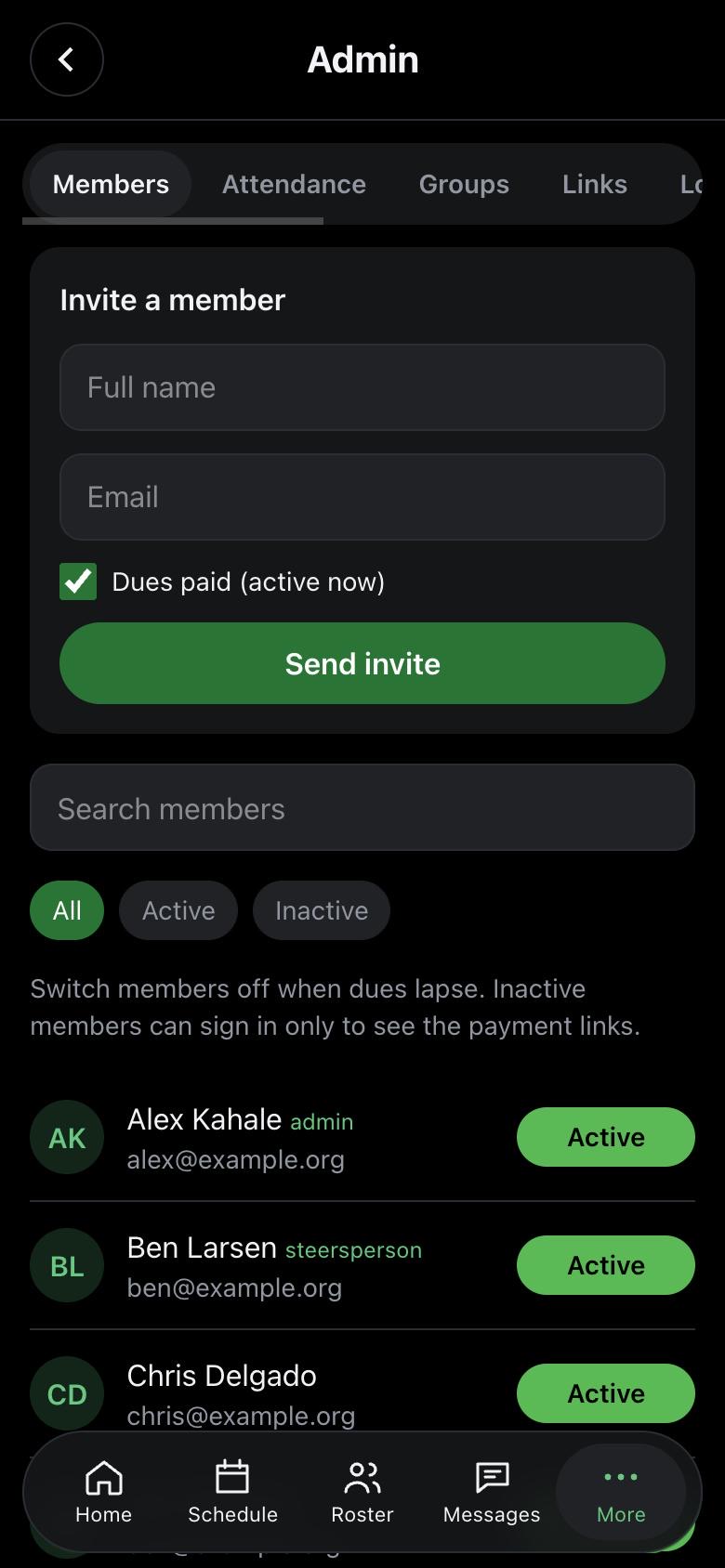
Open More > Admin (or Manage on the Roster).
- Members: invite a member by name and email, choose their role (Member, Coach, or Admin), and tick "Dues paid" to make them active now. Turn members Active or Inactive with one tap when dues are paid or lapse. Tap a name to set the role (Member, Coach, Admin), a board position, a paid-through date, or remove someone for good. Start new season marks everyone except admins inactive.
- Not signed in (a filter on Members) lists people who haven't signed in to the app yet. On their page, or their roster profile, tap Invite to the app to email them the invite (again, if needed). Coaches can do this too, from the roster profile.
- Download roster saves everyone as a spreadsheet with every profile field, including birthdays, emergency contacts, and medical notes (keep it private). Upload a roster reads a CSV (the download, or a TeamSnap export): it shows who is new, what changes, and any problems before saving. People are matched by email, so no one is added twice. Birthdays, emergency contacts, and medical notes only fill in what's blank. New people are invited right away, one email each; the app can send about 100 emails a day, so anyone past that is added and can be invited later.
- Attendance: a report of who came to practices, races, and other events over a date range, with a spreadsheet download. Someone counts as attending if they said Going (unless unticked) or were marked Here.
- Groups: every group chat, with who started it and how many are in it. You can add or remove people; you never see the messages.
- Links and Locations: edit the club links and the saved event locations.
- Aquatic Center: the closed and paddle-craft-only days read from the center's hours page (checked every Monday, or tap Check the hours page now). Ignore a misread day or add one by hand. Import Learn to Paddle classes from the class page, each with a "Help teach the class" job.
- OC6s: rename, retire, or add OC6s. The OC1 and OC2 are on OC1/OC2. Retired canoes don't appear in lineups or repair reports.
- Reports: reported messages. For Team Chat and event chats you see the message and can keep or remove it. Messages in private chats stay private: only the super admin can read them.
- Event history: every schedule change, including deleted events, and who made it.
There are three access levels: Member, Coach, and Admin. Who can steer is shown by the "Steers" tag and the paddler role, not by access. Coaches can schedule events, build lineups, email members, and set coaching tags. Admins can do all of that plus everything on this page.
Good to know
Everyone- Buttons that delete or cancel something need a second tap to confirm. The label changes to ask, like "Delete? Tap again".
- All times are Pacific time.
- Photos are shrunk on your phone before upload, so they send quickly.
- Gender is visible to all members so events can show mixed-crew counts. Birthdays, roles, emergency contacts, and medical notes are for coaches and admins only.
- Something not working, or an idea? Use More > Request a feature.